Your first hour in Cairn
A click-by-click tutorial that takes one real piece of work from a raw complaint to an outcome the system proves for itself. No prior knowledge needed — and nothing here depends on sample data, so it works the same on a fresh workspace.
If you want the concepts behind these steps, the Getting Started guide covers them in depth. This page is the practice; that one is the theory.
The one idea to hold onto: most trackers let a human drag work to "Done". In Cairn, a Mission becomes Verified only when evidence — a passing test, a moved metric — satisfies conditions everyone agreed on up front. You are about to watch that happen.
Getting set up
Sign in
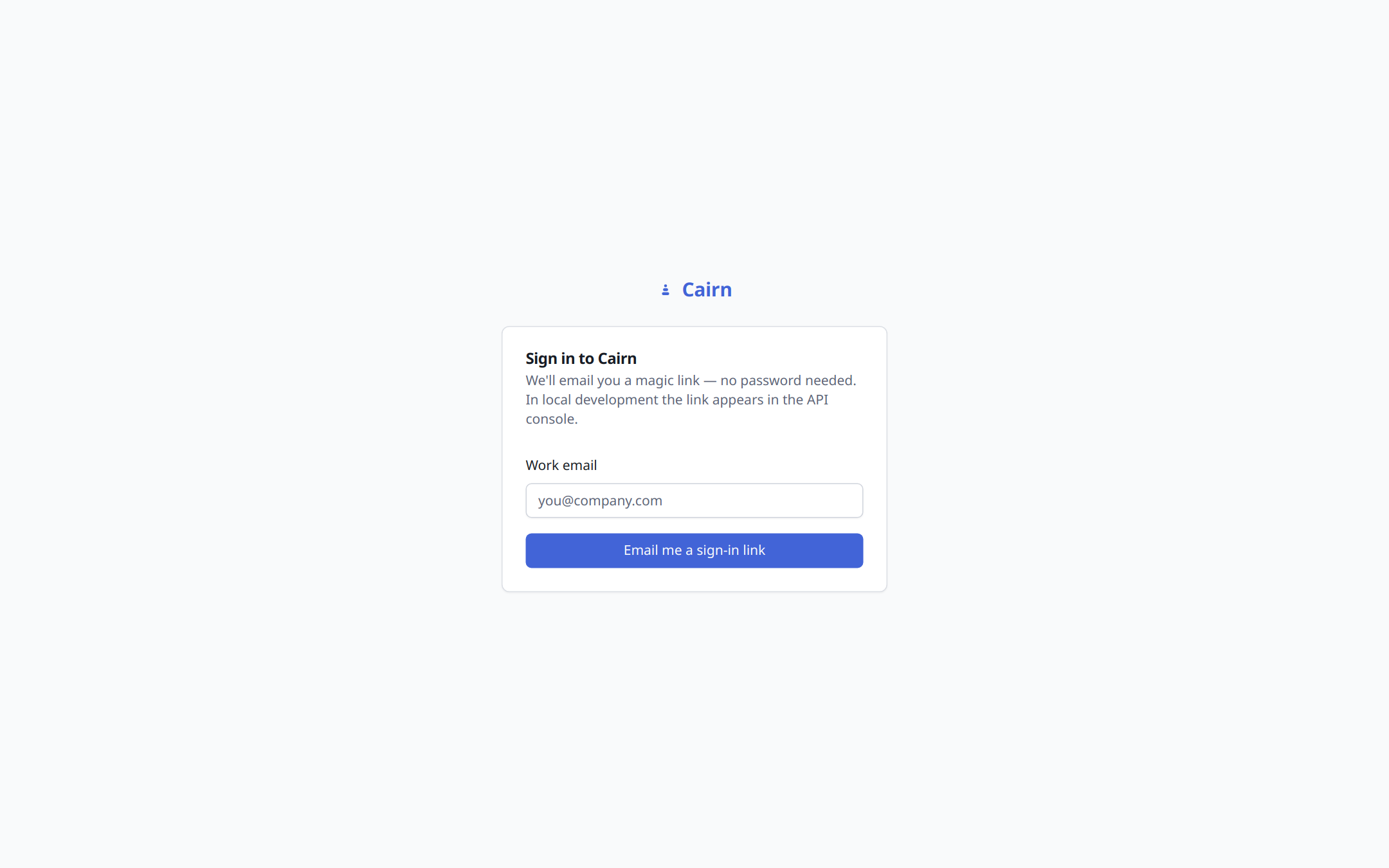
Go to /signin, enter your email, and click the link that arrives. There is
no password — the link is the sign-in.
Create your workspace
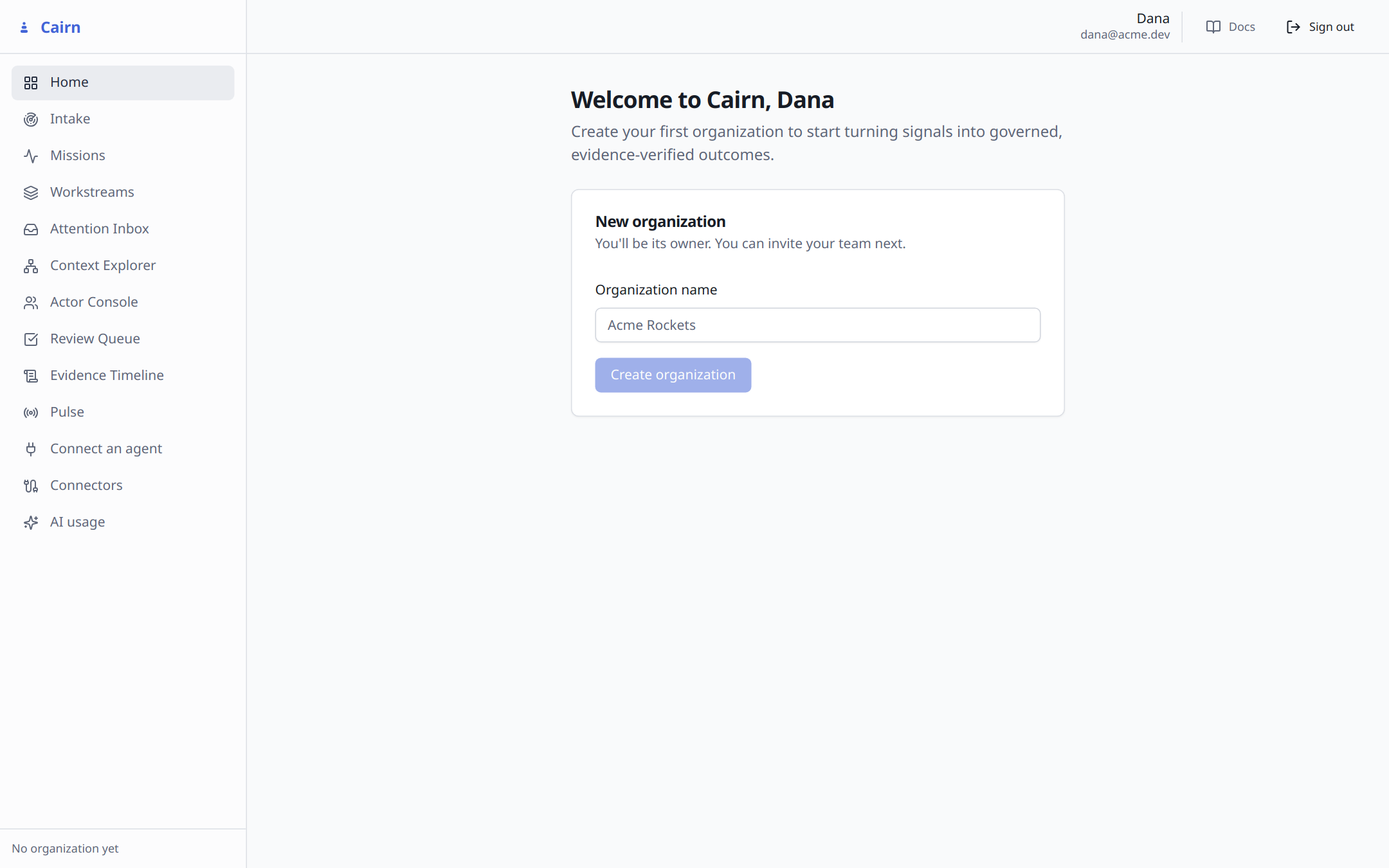
Your first sign-in lands on the New organization card. Name it and you become its owner. Everything in Cairn happens inside an organization: teammates you invite see this workspace, other organizations see nothing.
From complaint to commitment
Capture a Signal
Nothing in Cairn starts as a ticket. It starts as something somebody noticed. Open Intake → Capture signal and paste the report in the reporter's own words — don't tidy it up. Add a short summary and, if you like, an urgency.
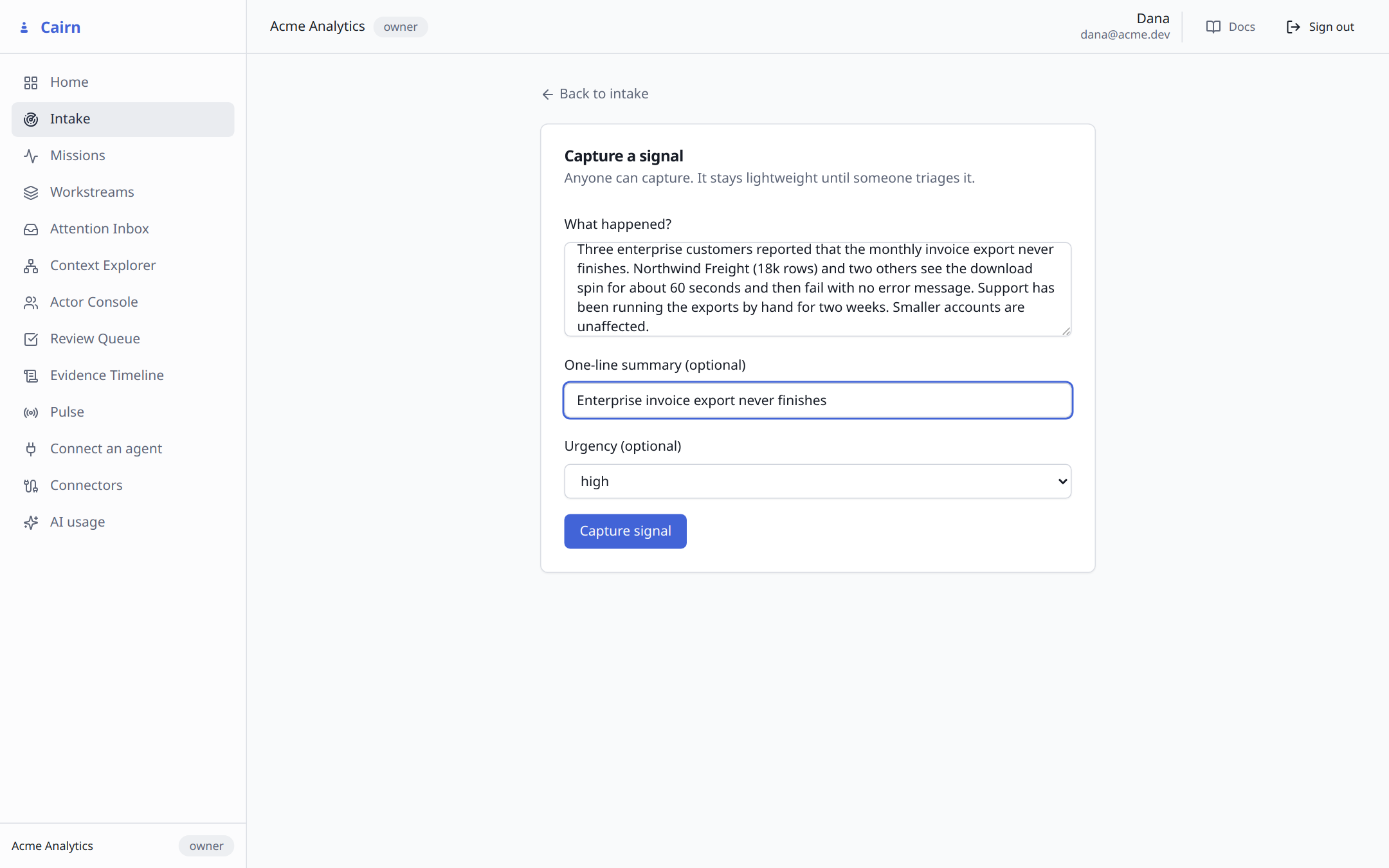
Capturing is not committing: a Signal can sit in Intake, be merged into another, or be dismissed with a recorded reason — none of it pretends to be planned work.
Triage it
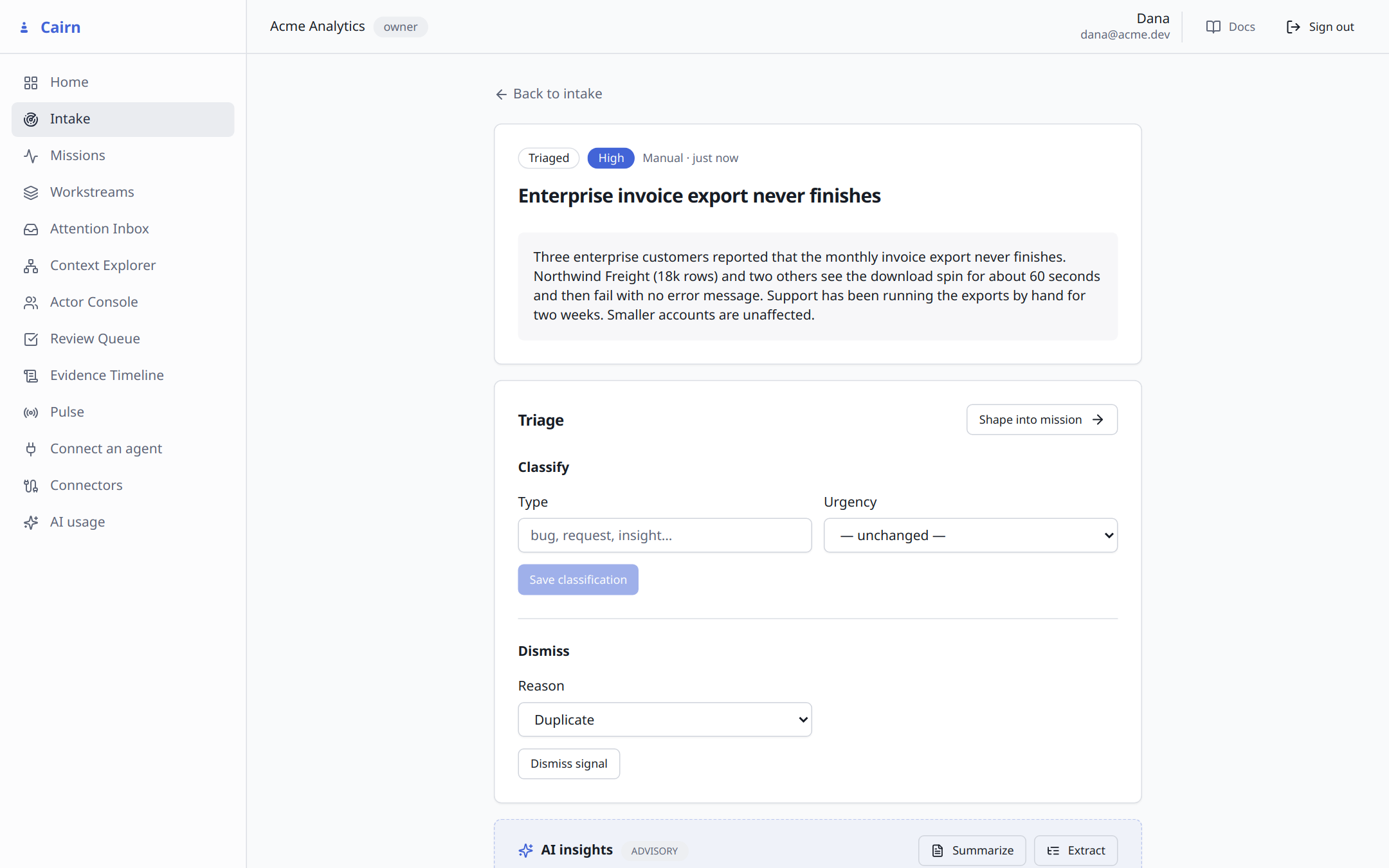
Open the signal and classify it: give it a Type (free text — bug,
request, whatever your team uses) and save. The badge flips New →
Triaged. That's the whole step — someone looked at it and said what it is.
If AI is configured, the AI insights box can summarize the signal and extract the requests, risks, and questions buried in it. Every insight is labelled with the model that produced it, given a confidence score, and quotes the sentence it came from. It never edits the signal itself.
Shape it into a Mission
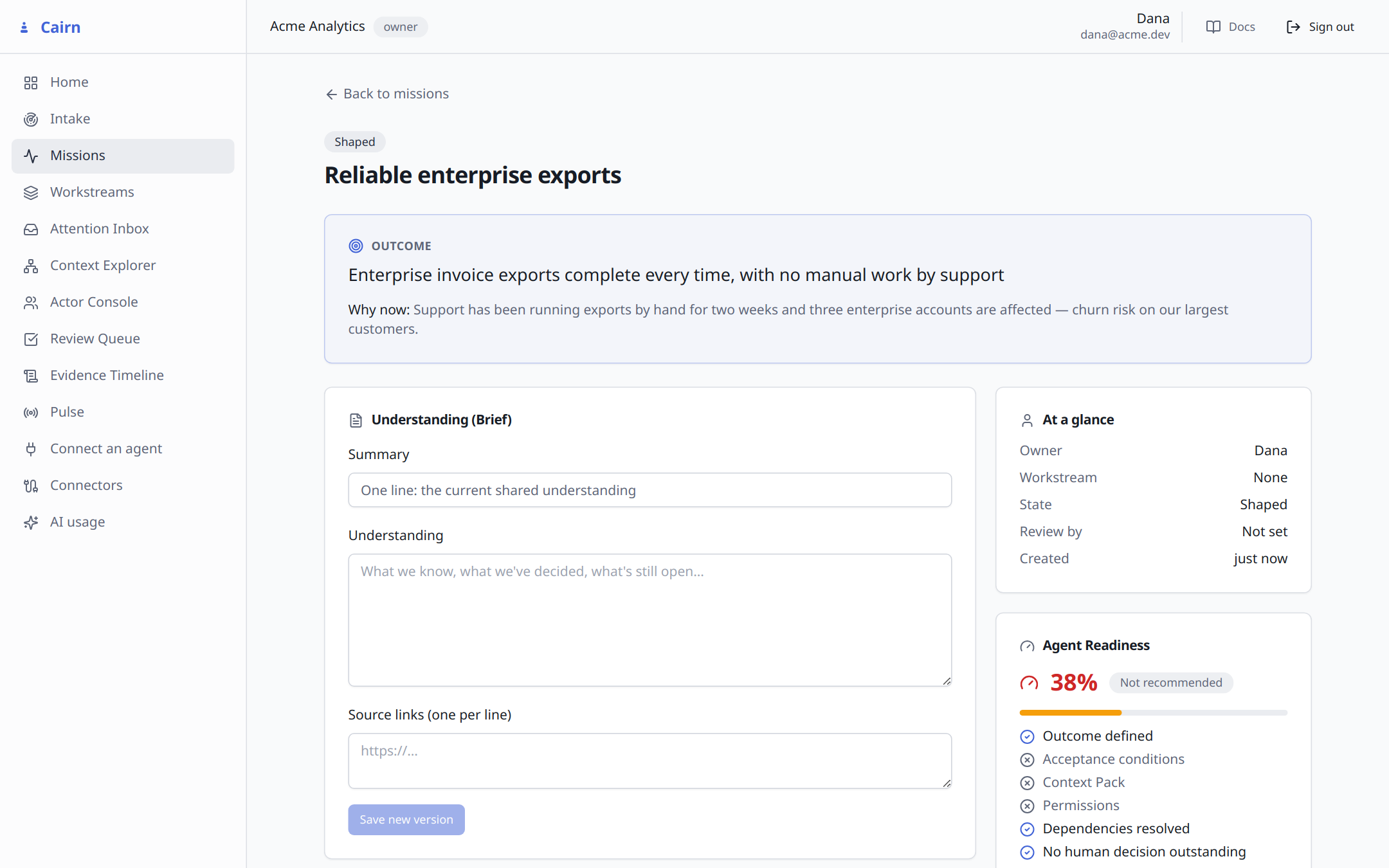
Click Shape into mission. A Mission is the unit of work in Cairn — a specific outcome you're pursuing, not a bucket of tickets. The form pushes you to lead with the outcome: something like "Enterprise invoice exports complete every time, with no manual work by support" — not "fix the export bug". Add success measures and constraints, one per line.
Creating it opens the Mission Canvas in state Shaped. Notice Agent Readiness in the right column sitting at a low score — remember that number; it moves as you work.
Write the Understanding (Brief)
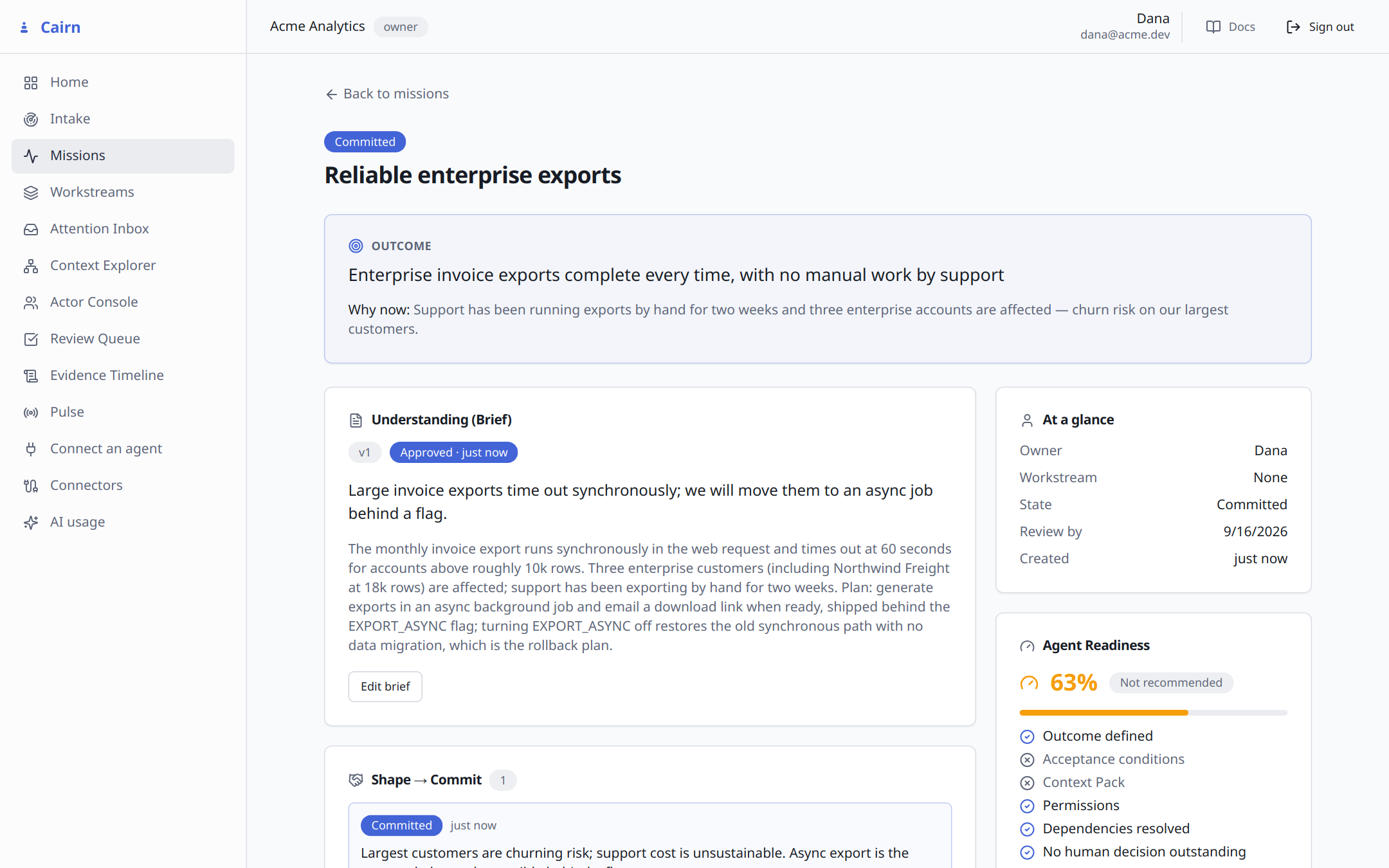
The Brief is the shared explanation of the problem, versioned — you can disagree with it later without losing what you used to think. Fill the summary and the long form, Save new version, then Approve it.
Tip: put your rollback plan in this text — something like "behind the EXPORT_ASYNC flag; turning it off restores the old path with no data migration." The Agent Readiness scorer reads the brief looking for one.
Propose, decide, commit
Committing is deliberately two moves. First Propose… a plan and submit it; the Mission moves Shaped → Proposed. Then Accept it — a plan that was never accepted can't quietly become the plan. Finally Commit… with a rationale, a review-by date, and — the most valuable field on the form — what is out of scope, one line per item.
Prove the work
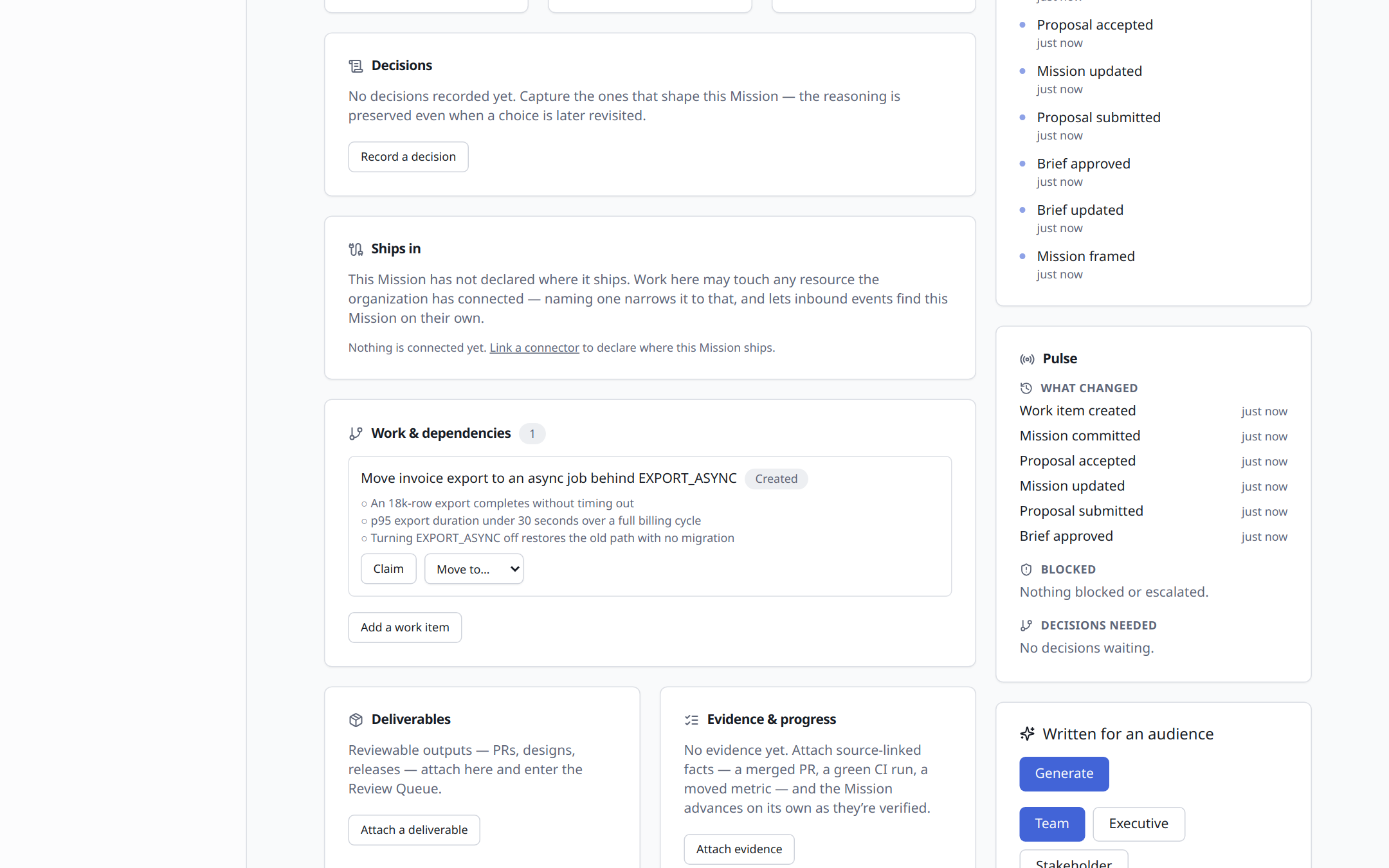
Break it into work items
Under Work & dependencies → Add a work item, give the task a title, a description, and — the important part — acceptance conditions, one per line, each written so a reviewer could actually check it:
An 18k-row export completes without timing out
p95 export duration under 30 seconds over a full billing cycle
Turning EXPORT_ASYNC off restores the old path with no migration
They render as ○ — unmet. Each will be independently proven. Then Claim
the item and use Move to… → In progress. Work items are the one thing you
move by hand; the Mission's own state is the part nobody types.
Attach the deliverable
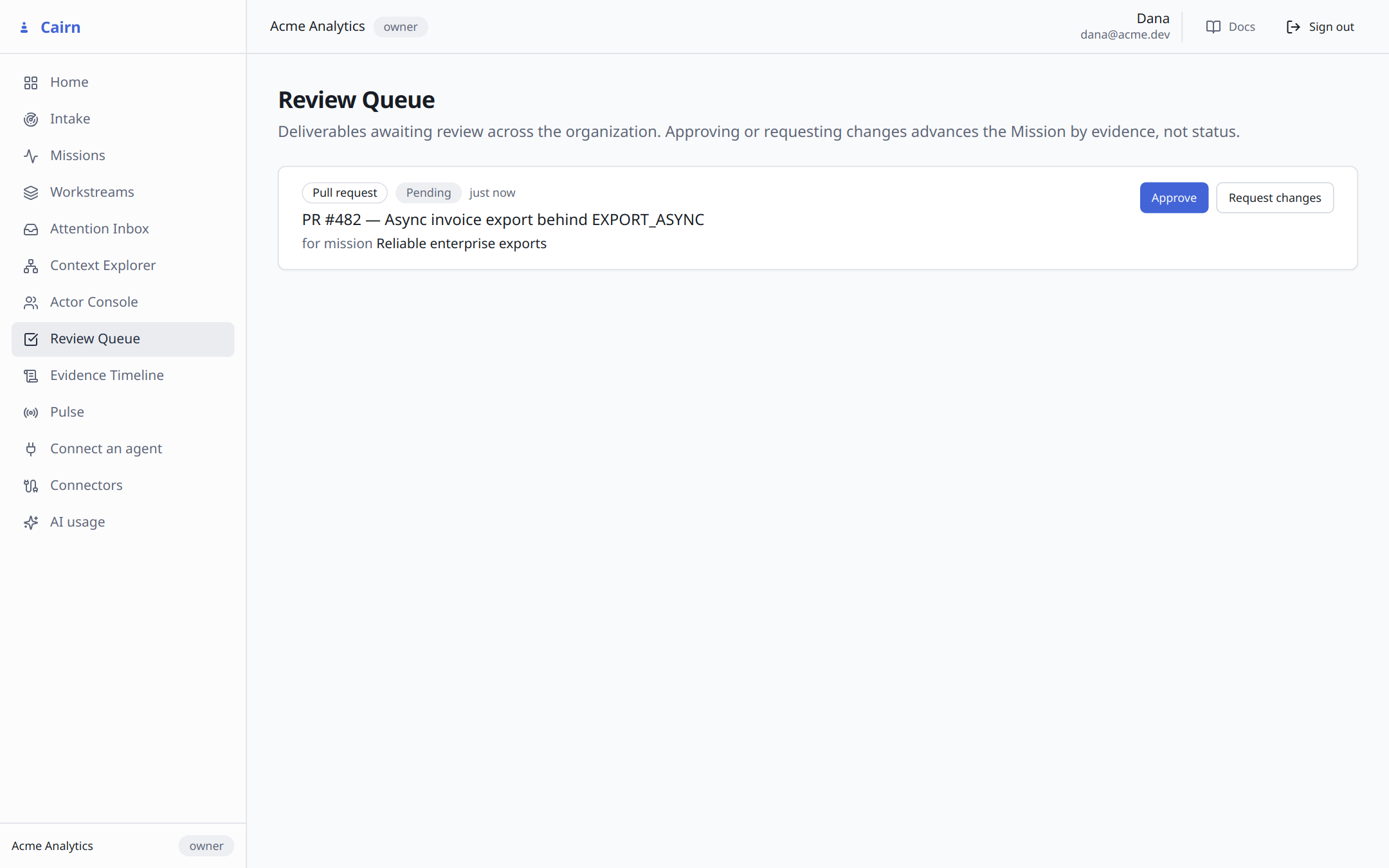
Deliverables → Attach a deliverable — pick a type (a pull request, say), give it a title and URL, and link it to your work item. A deliverable is the output. It is deliberately not proof the output worked — that's what evidence is for. It attaches as Pending and simultaneously appears in the org-wide Review Queue:
Attach evidence — and watch the Mission verify itself
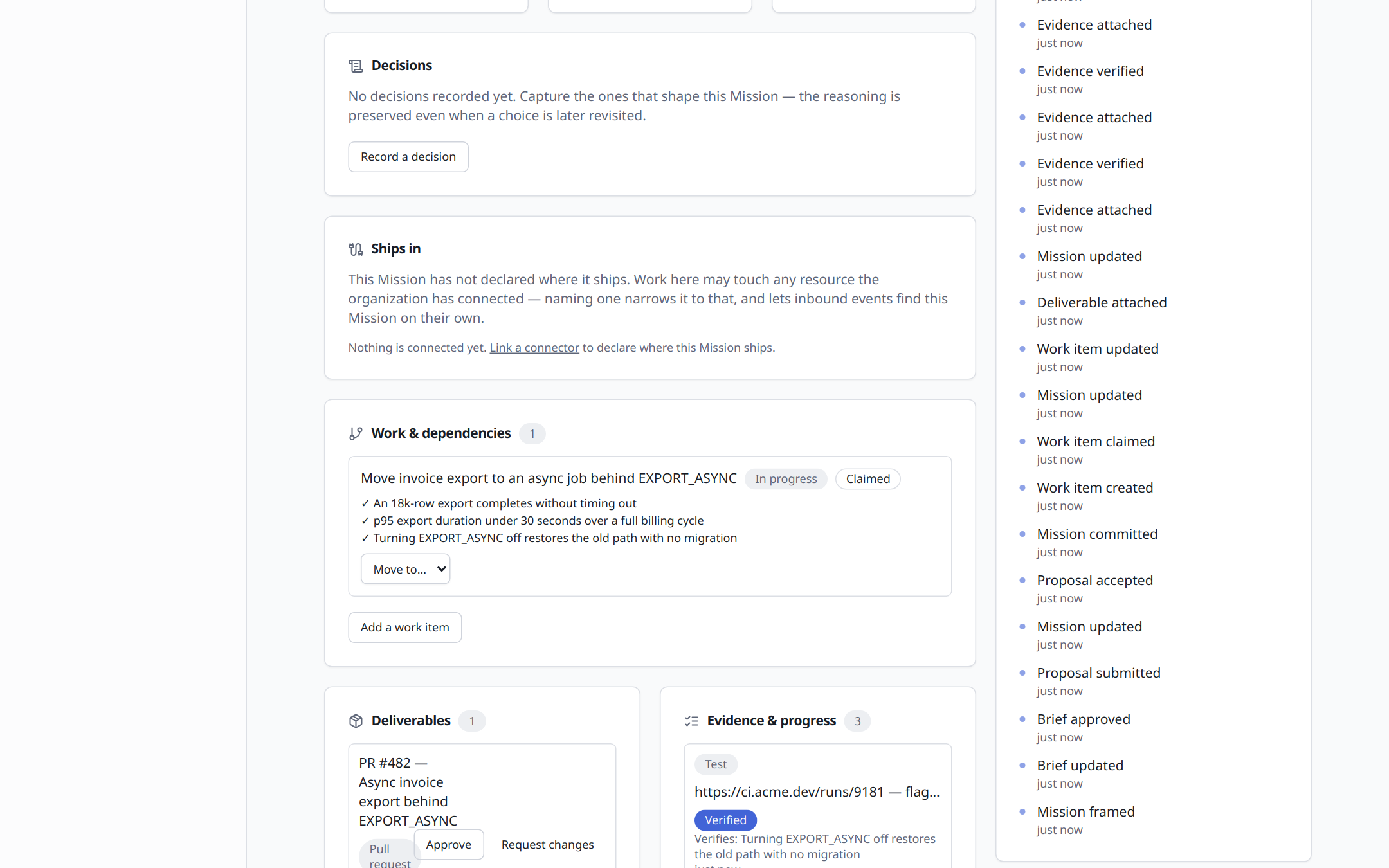
This is the step the whole product is built around. Under Evidence &
progress → Attach evidence, attach one piece of evidence per acceptance
condition: pick a kind (test, metric, ci…), say where the fact came
from, and — the whole mechanism — pick which condition it verifies. Tick
Mark as verified now.
As each lands, its condition flips ○ → ✓:
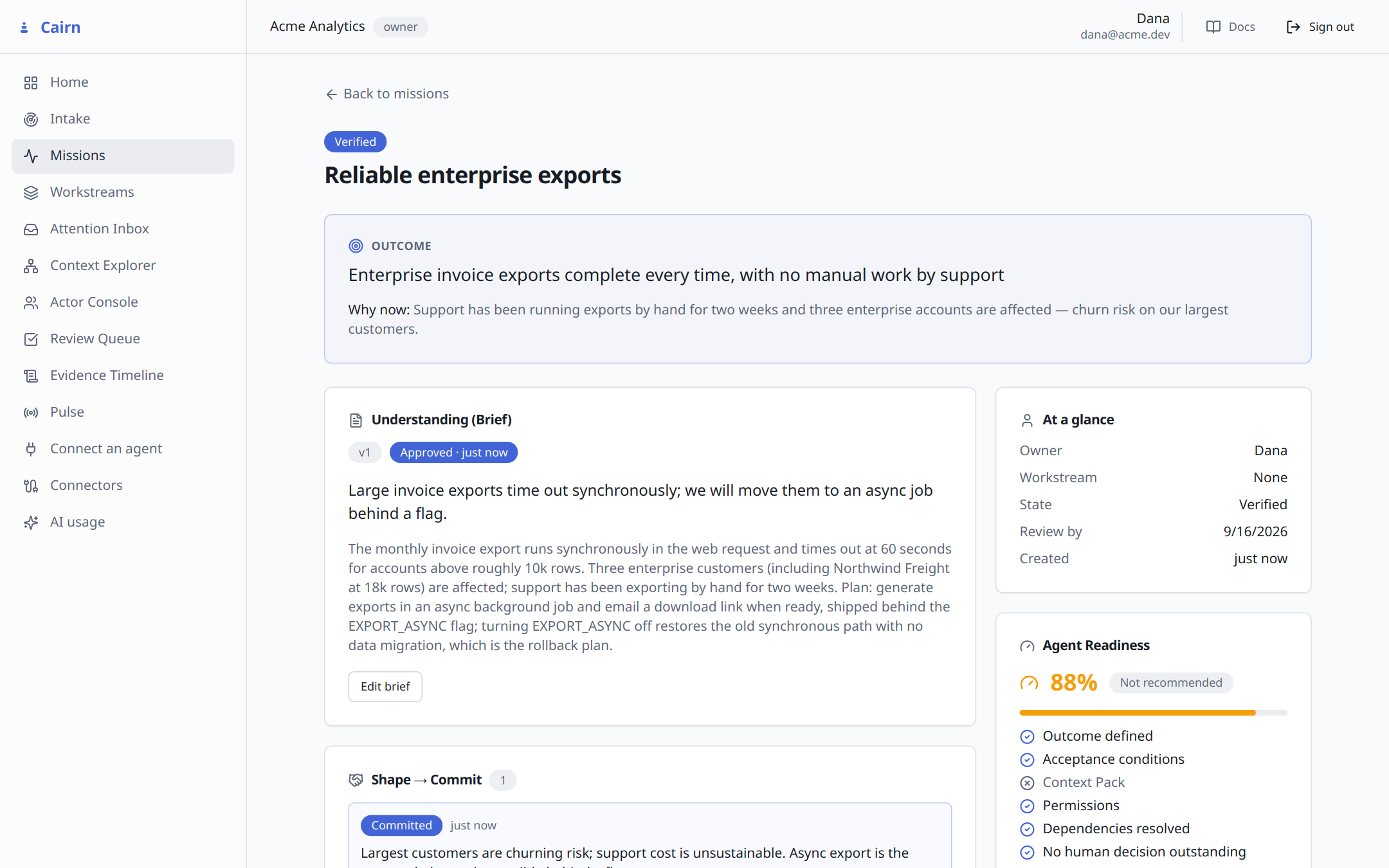
Now reload the page. Nobody set a status — every condition had proof, so the state followed:
Close the review
Back in the Review Queue, your deliverable is waiting. Approve it (or request changes). As the header there puts it: approving advances the Mission by evidence, not status.
Check the receipts
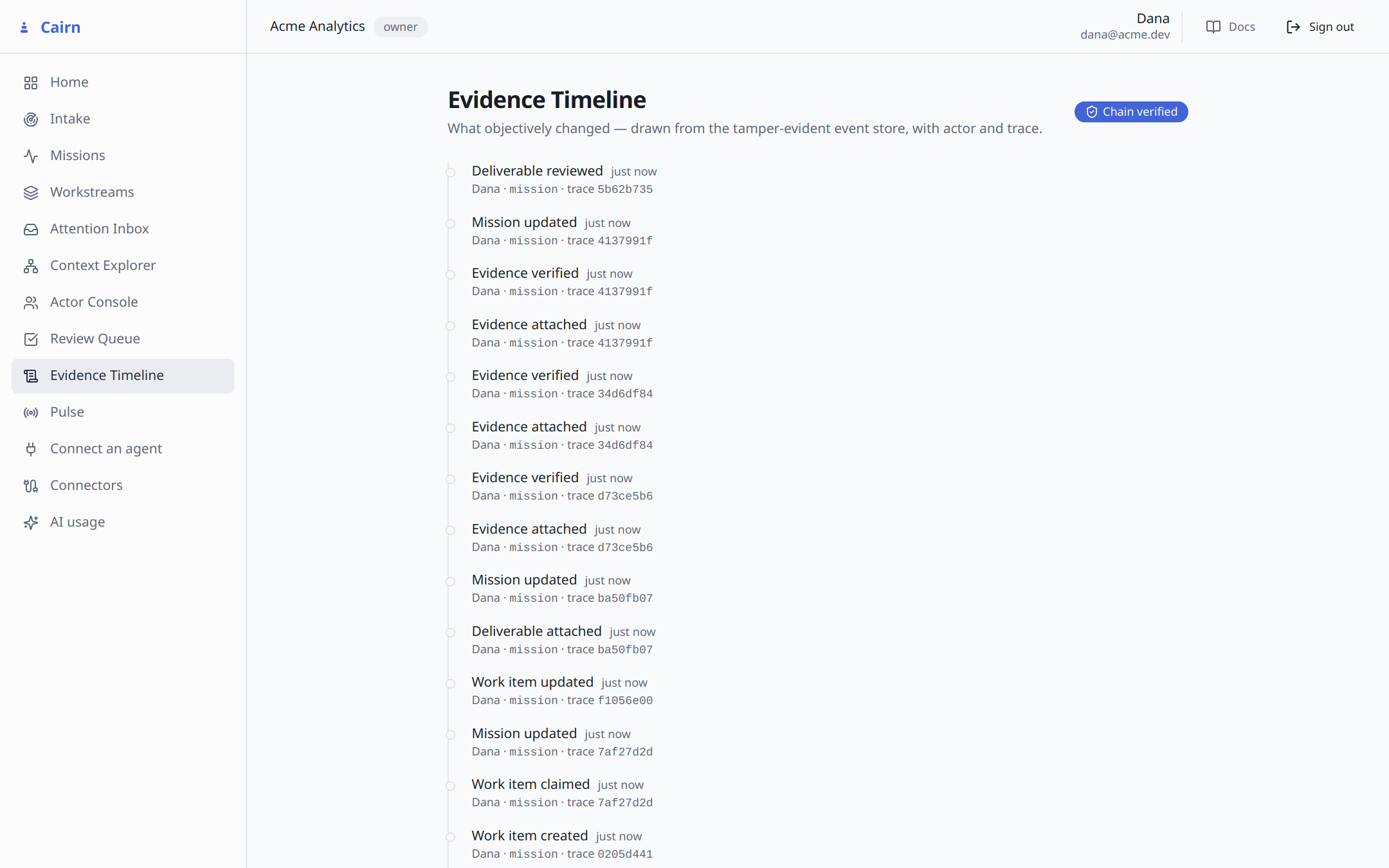
Open the Evidence Timeline. Every step you just took is there in order, each with its actor and a trace id — and at the top, a Chain verified badge. The event store is hash-chained, so that badge is a live integrity check, not a label somebody typed.
Around the loop
Risks and the Attention Inbox
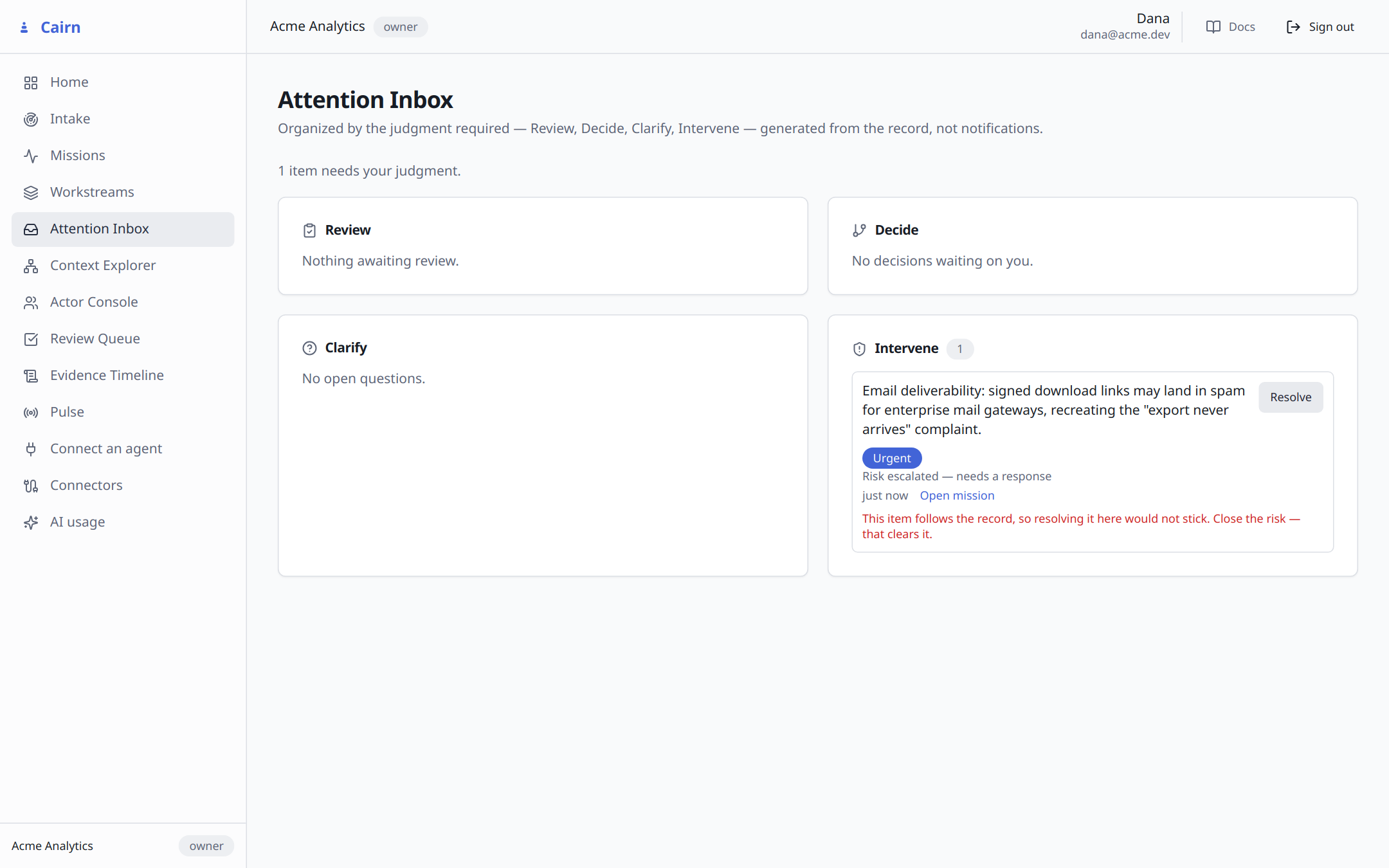
On the Mission, Raise a risk with its likelihood, impact, and the indicators that would show it materializing — then Escalate it. Now open the Attention Inbox: four lanes — Review, Decide, Clarify, Intervene — generated from the actual state of work, never from @-mentions. Your escalated risk is sitting in Intervene:
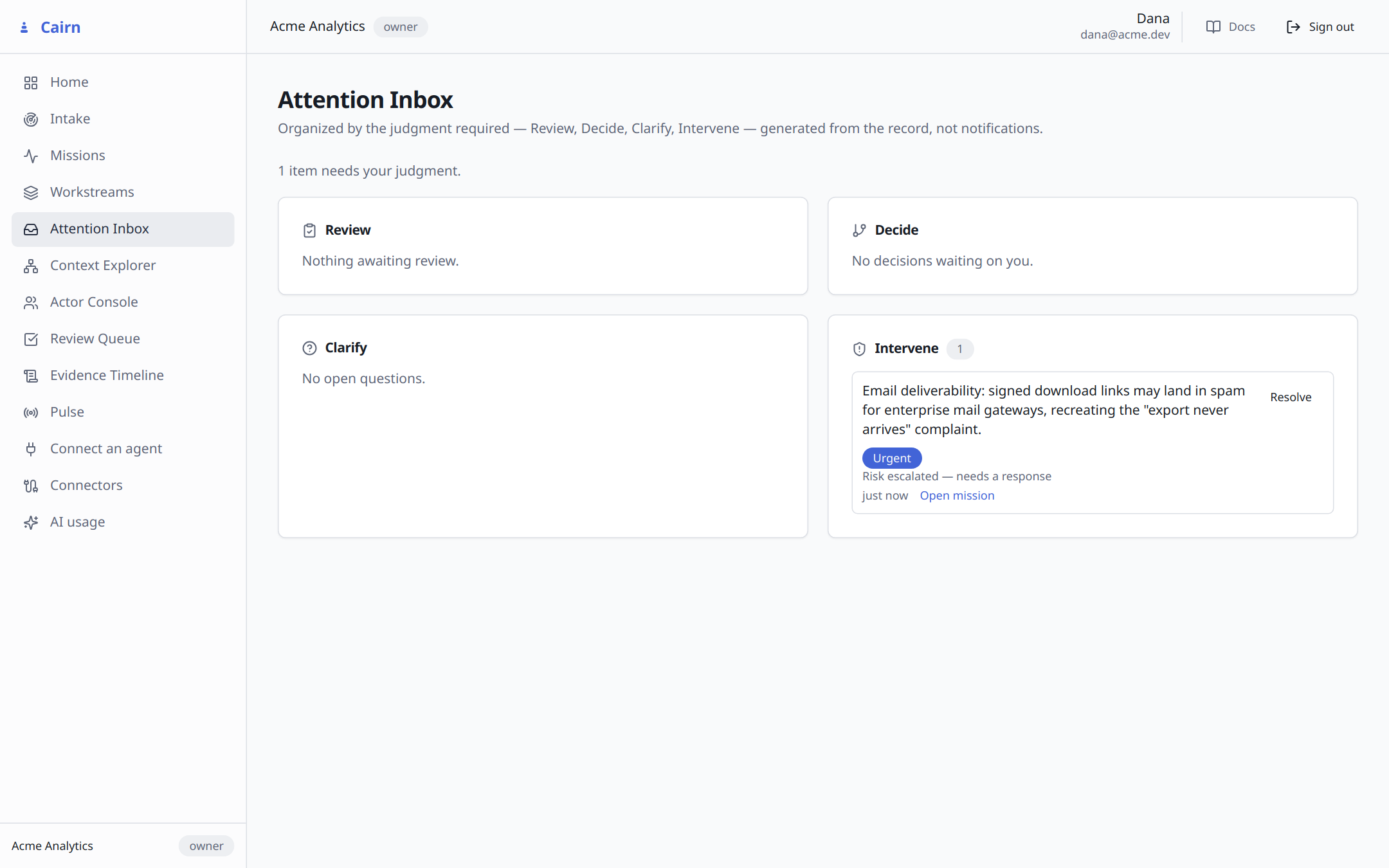
Try clicking Resolve on it. Cairn refuses, and tells you why: the inbox follows the record, so an item whose condition is still live can't be waved away — closing the risk is what clears it.
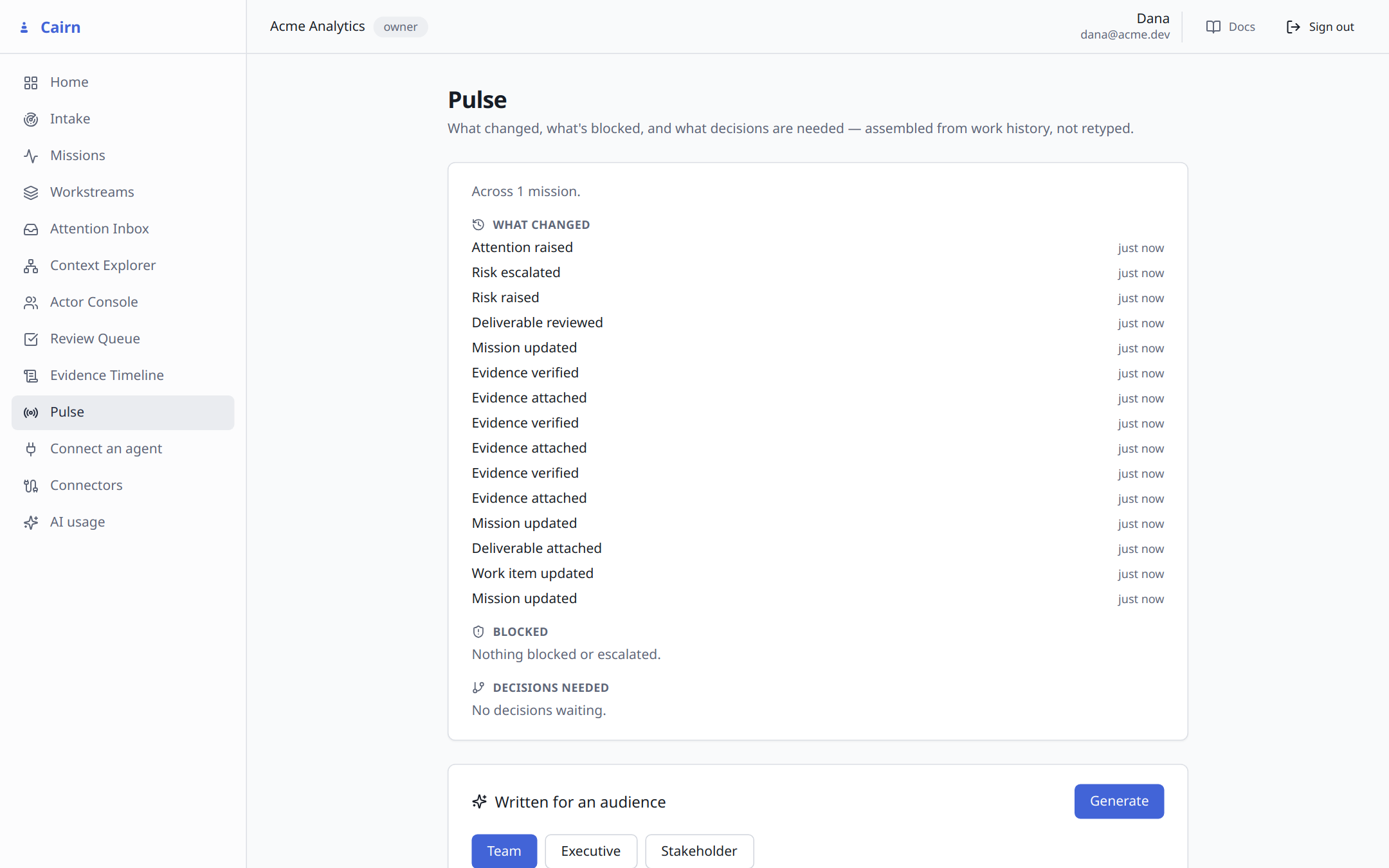
Pulse — a status report you didn't write
Open Pulse, pick an audience — team, executive, or stakeholder — and Generate. The same week of work told at three altitudes, and every highlight cites the recorded facts it came from. If the model writes a line it cannot ground in the record, that line is dropped before you see it.
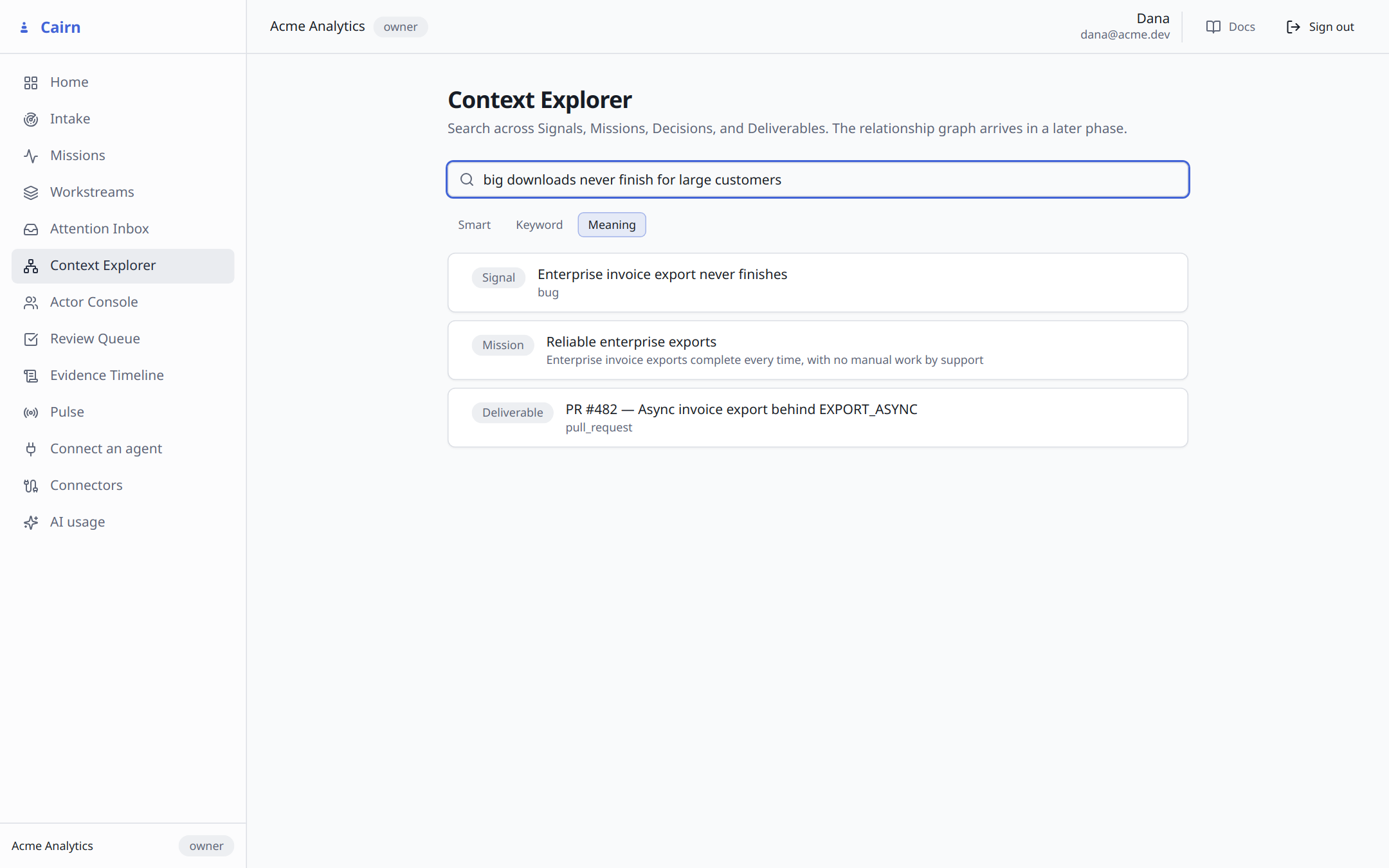
Search that understands meaning
In Context Explorer, switch to Meaning and search for your work using words that appear nowhere in it — here, "big downloads never finish for large customers":
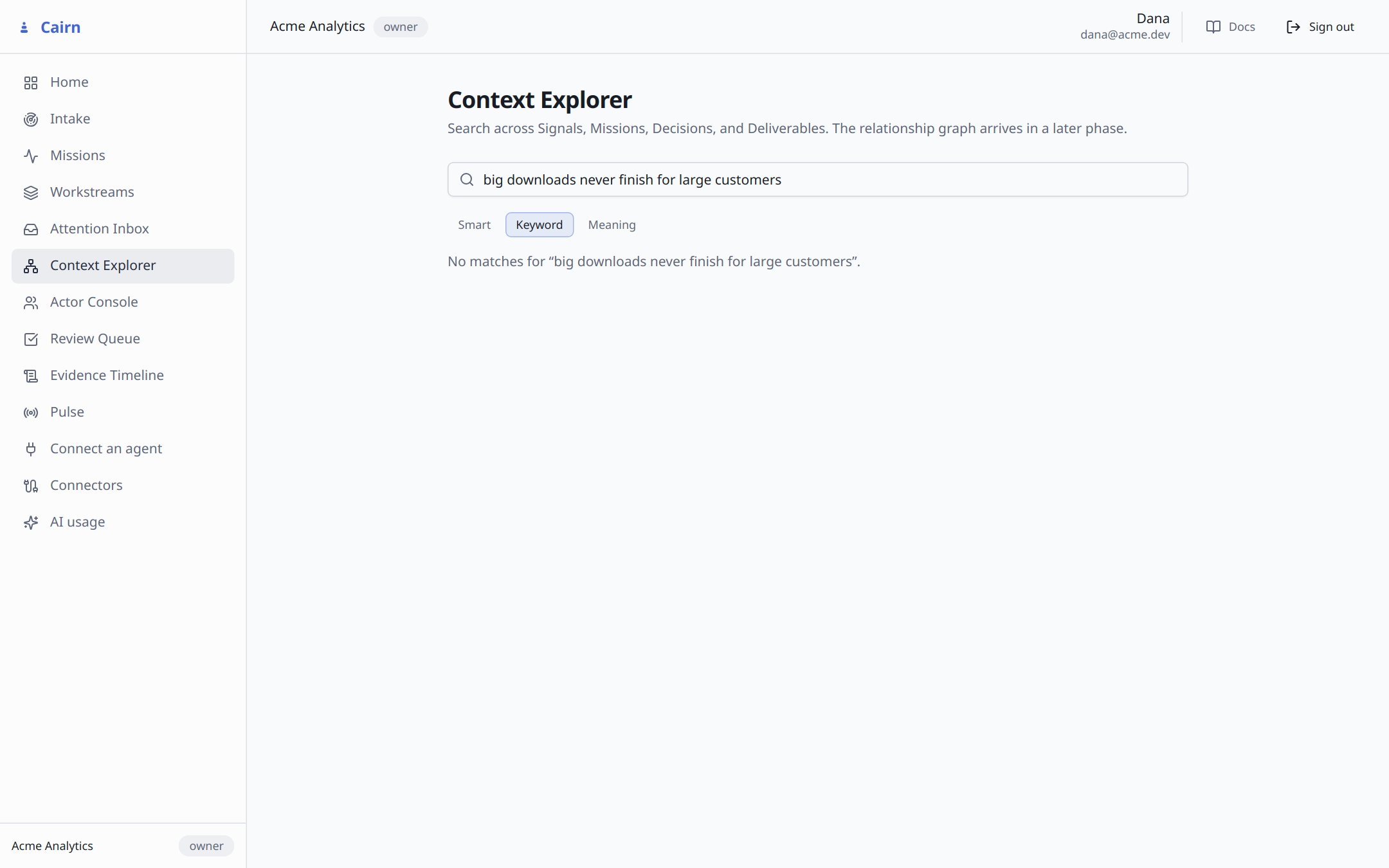
Switch to Keyword — that's what an ordinary tracker does — and watch the same query find nothing:
Is this work ready to hand off?
Back on the Mission, generate the Context Pack — the handoff document an agent (or a colleague) would receive, assembled automatically from authorized data only. Reload, and Agent Readiness reads 100% — Delegation ready: outcome defined, conditions provable, rollback present, nothing waiting on a human.
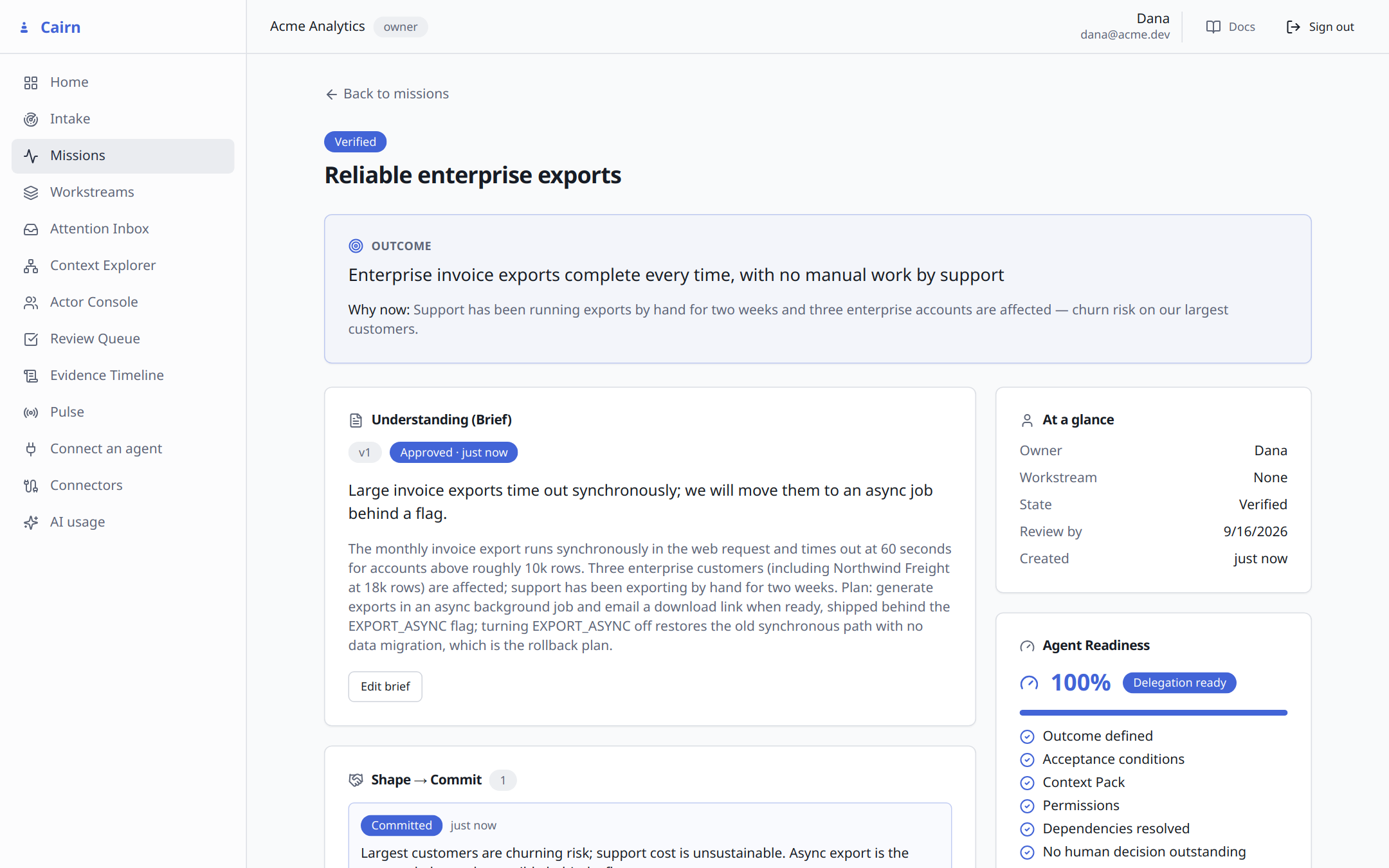
This score is useful even if you never touch AI: it's a checklist for whether work is specified well enough to hand to anyone.
Where to go next
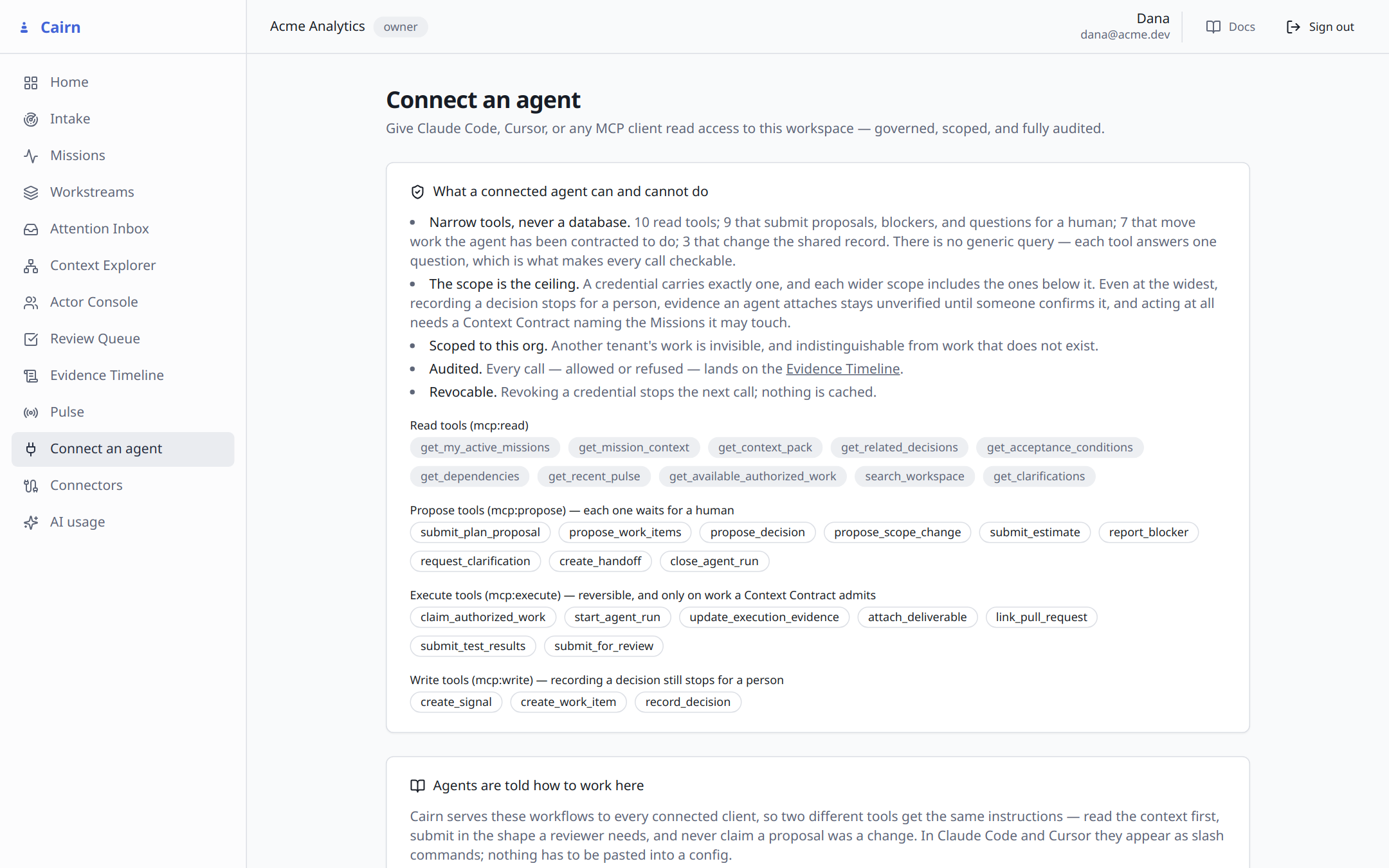
Connect an AI agent. The Connect an agent page walks the whole thing: register the agent as a first-class Actor, choose one of four scopes, and copy a ready-made config for Claude Code, Cursor, and others. Every call it makes — allowed or refused — lands on the Evidence Timeline.
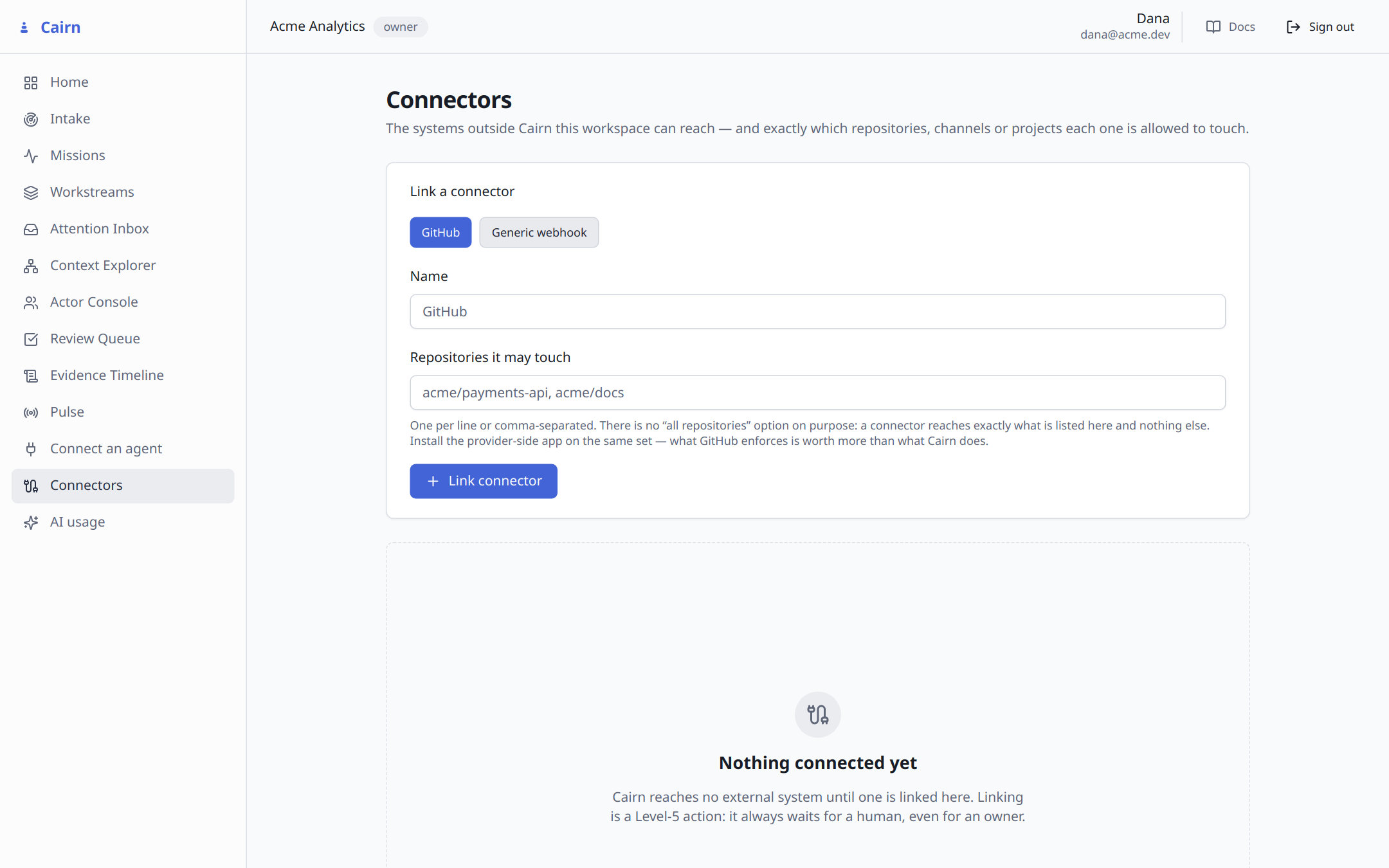
Wire up GitHub. Connectors turns pull requests, merges, CI runs and deployments into Deliverables and Evidence automatically — scoped to exactly the repositories you list, and linking always stops for a human approval, even for an owner.
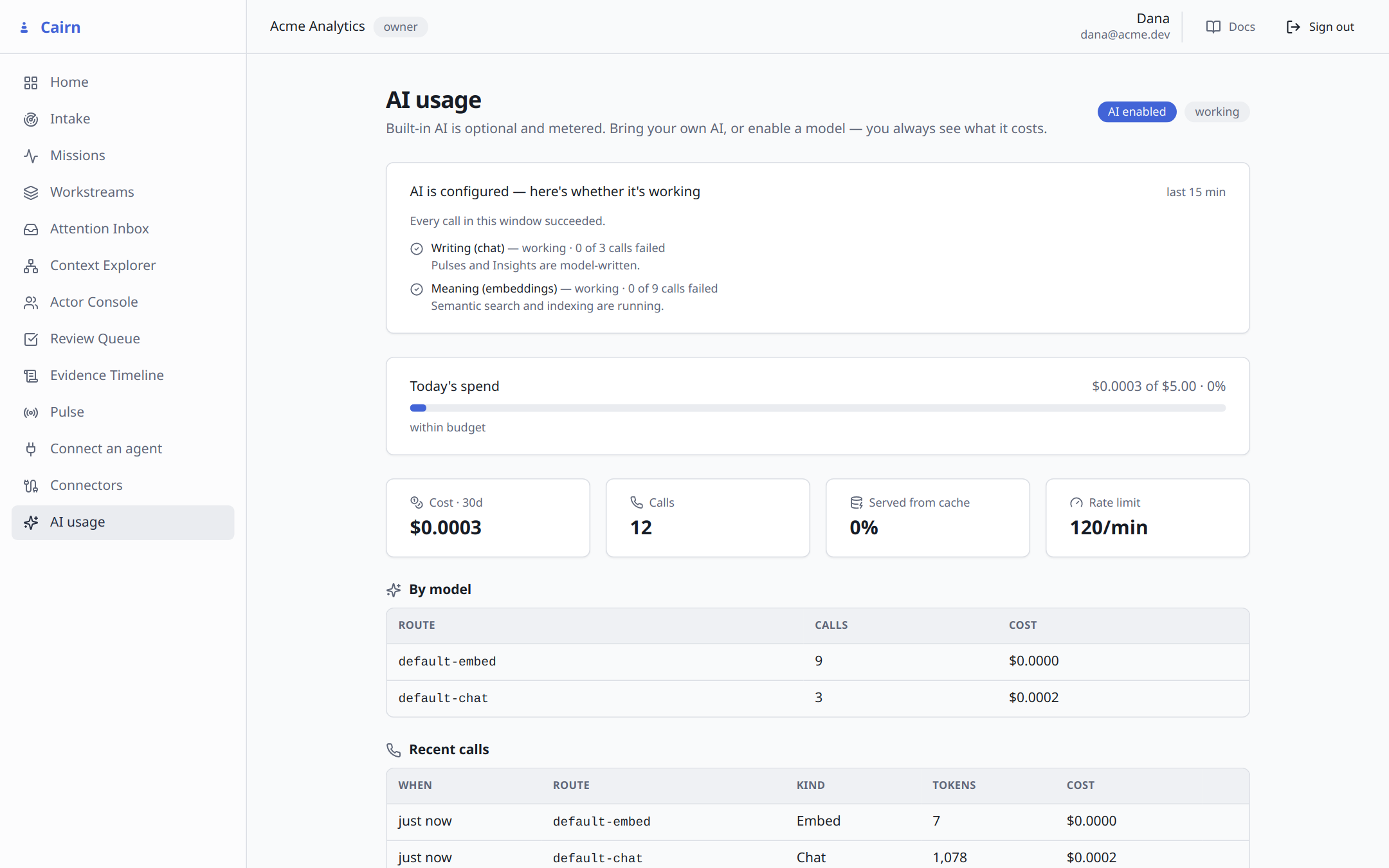
Watch what AI costs. AI usage meters every model call with its route, tokens, and spend against a per-organization budget.
For the concepts behind all of this — roles, self-hosting, the intake API — continue with the Getting Started guide.